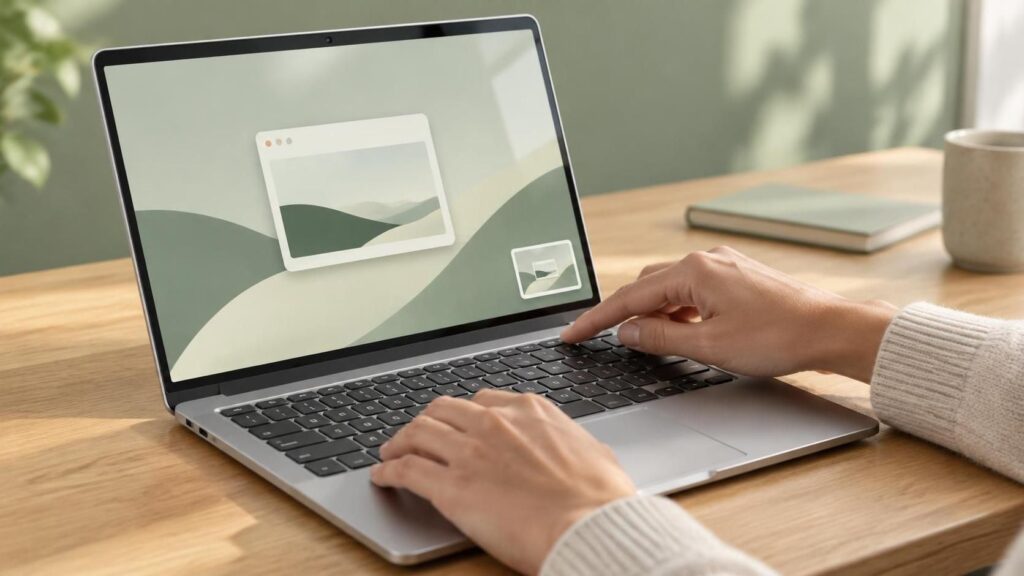

To take a screenshot on a Chromebook, press Shift + Ctrl + Show windows (the key with stacked rectangles, above the 6), then choose full screen, partial or window from the menu at the bottom. If your Chromebook has a dedicated Screenshot key, press that instead. Screenshots save to your Downloads folder and are copied to your clipboard automatically.
Below are every way to grab your screen, how to capture just part of it, how to record video, and what to do when the shortcut doesn’t work.
Key Takeaways
- Shift + Ctrl + Show windows opens the Screen capture tool on most Chromebooks.
- With an external keyboard that has no Show windows key, use Ctrl + Shift + F5.
- You can also open Screen capture from Quick Settings by selecting the time in the bottom-right corner.
- Every capture lands in Downloads by default and goes straight to your clipboard for pasting.
Every Way to Screenshot on a Chromebook
Google’s Chromebook help page lists several routes to the same Screen capture tool. Use whichever is easiest on your device.
1. The keyboard shortcut
Press Shift + Ctrl + Show windows. The Show windows key looks like a rectangle with two lines beside it and usually sits in the top row where F5 would be. A toolbar appears at the bottom of the screen. Pick Screenshot, then choose the type you want.
2. The Screenshot key
Newer Chromebooks often have a dedicated Screenshot key in the top row, marked with a camera or a dashed box. Press it once and the same toolbar opens.
3. Quick Settings
No shortcut needed. Select the time at the bottom right of your screen to open Quick Settings, then choose Screen capture. This is the easiest option on a touchscreen or when you can’t remember the keys.
4. External keyboards
If you use a regular USB or Bluetooth keyboard without a Show windows key, press Ctrl + Shift + F5, then select Screenshot.
5. Tablet mode
On most Chromebook tablets and convertibles folded into tablet mode, pressing the Power and Volume down buttons together takes a full-screen screenshot, much like a phone. You can also use the Screen capture tile in Quick Settings.
How to Take a Partial or Window Screenshot
Once the Screen capture toolbar is open, you’ll see three options:
- Full screen: captures everything on the display. Click anywhere to take it.
- Partial: drag a box around the area you want, then click Capture.
- Window: hover over a window and click it to capture just that window.
You can fine-tune a partial capture with the keyboard. Google’s help page says to press the space bar to change the selected section, or press Tab until a corner is highlighted and then use the arrow keys to resize. That’s handy for precise crops, like grabbing just one chart from a spreadsheet.
Where Do Chromebook Screenshots Go?
By default, screenshots save to the Downloads folder in the Files app. A small preview also pops up in the corner, so you can open, copy or delete it right away. Because each capture is copied to the clipboard, you can paste it straight into a document, email or chat with Ctrl + V.
To save somewhere else, open the Screen capture toolbar, select the settings gear, and choose Select folder. Some people point it at a Google Drive folder so screenshots sync across devices.
How to Record Your Screen on a Chromebook
The same tool records video. Open Screen capture with any method above, switch from Screenshot to Screen record, then choose full screen, partial or window. Click to start, and select the red stop button on the shelf when you’re done. The settings gear lets you turn on your microphone or camera if you want narration. Recordings also save to Downloads.
Screen recordings are useful for showing a teacher or help desk exactly what’s going wrong. If you’re recording for a video call or interview, our guide to Zoom interview overlay tools covers the privacy risks of on-screen helpers.
Chromebook Screenshot Not Working? Try These Fixes
- Your school or work blocks it. Managed Chromebooks can have screenshots turned off by an administrator. If the tool won’t open at all, ask your IT team.
- Wrong key. Make sure you’re using Show windows, not the Overview or Launcher key. On external keyboards, use Ctrl + Shift + F5.
- Files seem missing. Check Downloads in the Files app, or the folder you chose in Screen capture settings.
- Protected content. Some streaming sites and apps block screenshots, so you’ll get a black image.
- Still stuck. Restart the Chromebook and check for a ChromeOS update in Settings.
Quick Shortcut Cheat Sheet
| What you want | How to do it |
|---|---|
| Open Screen capture | Shift + Ctrl + Show windows, or the Screenshot key |
| Open it on an external keyboard | Ctrl + Shift + F5 |
| Open it without a keyboard | Select the time, then Screen capture |
| Tablet screenshot | Power + Volume down |
| Paste a screenshot | Ctrl + V (it’s already on your clipboard) |
The Fastest Way to Screenshot on a Chromebook
Learn one shortcut, Shift + Ctrl + Show windows, and you can handle almost anything. Use the partial option for clean crops, paste directly from the clipboard, and change the save folder if Downloads gets cluttered. Knowing how to screenshot on a Chromebook this way takes seconds and saves a lot of explaining when you need to share what’s on your screen.
Frequently Asked Questions
What is the Show windows key on a Chromebook?
The Show windows key, also called Overview, displays all your open windows at once. It’s in the top row of most Chromebook keyboards, usually where F5 sits on a Windows laptop, and its icon looks like a rectangle with two vertical lines beside it.
Can I screenshot on a Chromebook without a keyboard?
Yes. Select the time in the bottom-right corner to open Quick Settings, then tap Screen capture. In tablet mode, pressing Power and Volume down together also takes a screenshot on most devices.
How do I copy a screenshot on a Chromebook?
You don’t need to do anything extra. ChromeOS automatically copies each screenshot to the clipboard, so you can press Ctrl + V to paste it into a document, email or chat right after taking it.
Why can’t I take a screenshot on my school Chromebook?
Schools and workplaces can disable screenshots and screen recording through device management. If the Screen capture tool won’t open or is missing, the setting is likely blocked by your administrator, and only they can change it.
Headlinza writes practical guides on apps, software and everyday tech.