






Instagram Message Dark Mode: How to Turn It On
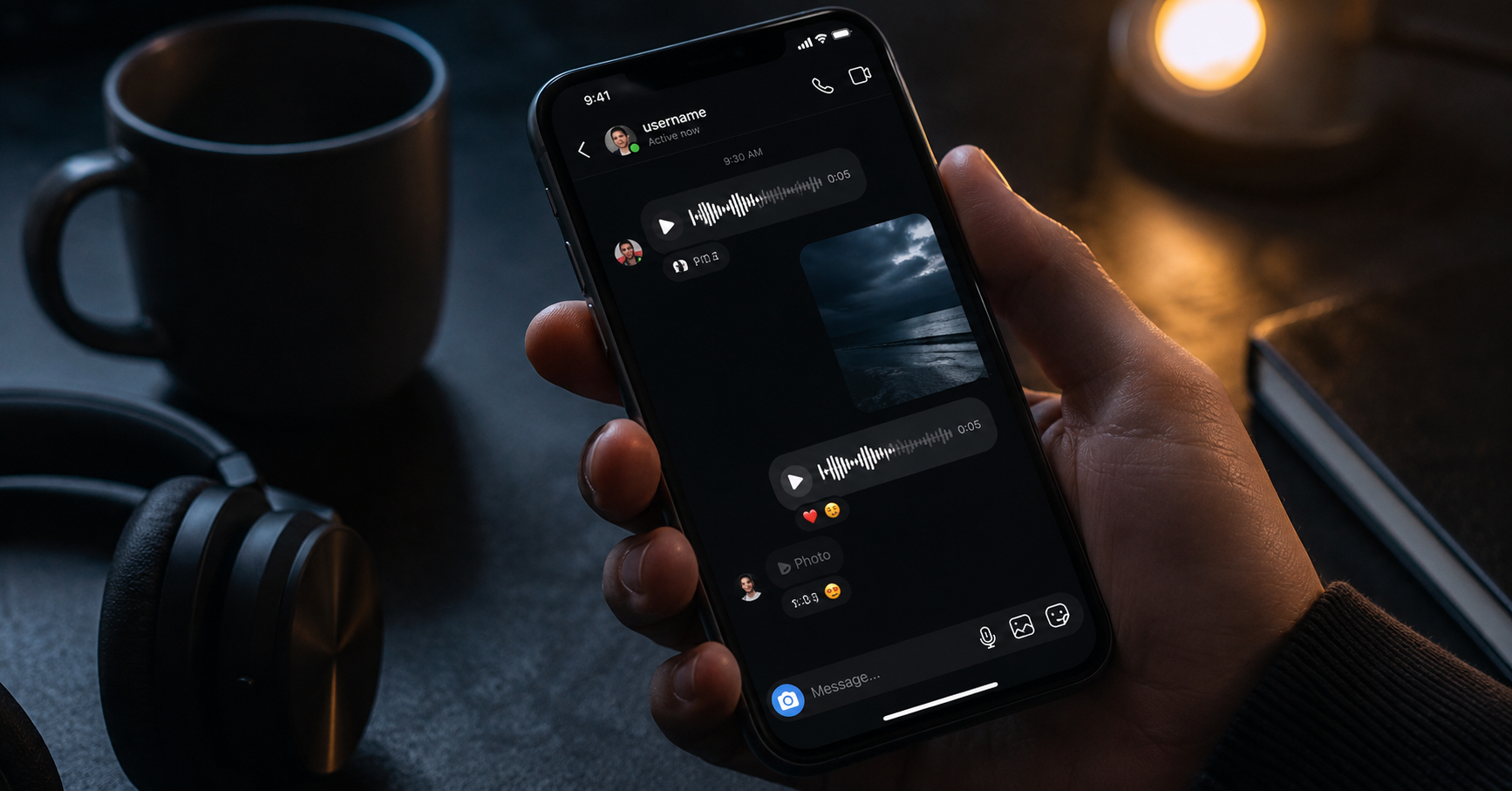
To make Instagram messages dark, turn on Dark mode for the Instagram app. On Android, open your Instagram profile, tap the menu, select Accessibility and translation, tap Dark mode, and choose On or System default. On an iPhone or iPad, enable Dark Mode through Settings > Display & Brightness > Dark. Instagram then uses the darker interface for your inbox and conversations. (Instagram Help Center)
There is also a separate chat theme setting inside individual conversations. A chat theme changes the background and accent colors of one direct-message thread, while Dark mode changes the appearance of the wider Instagram interface.
Instagram Message Dark Mode at a Glance
| What you want to change | Setting to use | What it affects |
|---|---|---|
| Make all Instagram messages dark | Instagram or device Dark mode | Inbox, conversations, menus, and much of the app |
| Make one conversation look different | Chat Theme | One individual or group conversation |
| Match Instagram to the phone automatically | System default | Instagram follows the device’s light or dark appearance |
| Make Instagram.com dark | Switch appearance | Instagram in that web browser on that device |
| Turn messages light again | Dark mode Off or device Light mode | Returns the relevant interface to a light appearance |
The correct setting depends on whether you want a darker app or a decorative background for one chat.
How to Turn On Instagram Message Dark Mode on Android
Meta’s current Android instructions provide an appearance control inside Instagram.
- Open the Instagram app.
- Tap your profile picture in the bottom-right corner.
- Tap the three-line menu in the top-right corner.
- Find the Your app and media section.
- Tap Accessibility and translation.
- Tap Dark mode.
- Select On.
You can select System default instead if you want Instagram to follow your phone’s current appearance automatically. (Instagram Help Center)
When Dark mode is enabled, Instagram’s inbox and conversation screens should use a dark background. The setting also changes other supported parts of the app, so it is not limited to direct messages.
Turn it on through Android settings
You can also enable the device-wide Android Dark theme:
- Open the phone’s Settings app.
- Tap Display.
- Turn on Dark theme.
- Return to Instagram and reopen the app if its appearance does not change immediately.
Google states that device Dark theme changes supported system screens and apps. Some manufacturers may use slightly different labels, such as Dark mode, Display and touch, or Appearance. (Google Help)
On, Off, or System Default?
Choose:
- On when you want Instagram to stay dark even while the phone uses a light theme.
- Off when you want Instagram to remain light.
- System default when you want Instagram to follow the phone’s appearance.
System default is useful when Android is scheduled to switch to Dark theme at night and Light theme during the day.
How to Turn On Instagram Message Dark Mode on iPhone
On an iPhone or iPad, Meta directs users to control Instagram Dark mode through the device’s appearance settings rather than an Instagram-specific iOS switch. (Instagram Help Center)
Follow these steps:
- Open the iPhone Settings app.
- Tap Display & Brightness.
- Under Appearance, select Dark.
- Open Instagram.
Your Instagram inbox, messages, profile, and other supported screens should now use the dark interface. Apple’s current iPhone instructions confirm the same Settings > Display & Brightness > Dark path. (Apple Support)
Use Control Center instead
For a faster switch:
- Open Control Center.
- Touch and hold the brightness bar.
- Tap Dark Mode.
Apple also allows Dark Mode to be added as a separate Control Center button. (Apple Support)
Schedule Instagram Dark Mode at night
Instagram follows the iPhone’s appearance, so you can automate it:
- Open Settings.
- Tap Display & Brightness.
- Turn on Automatic.
- Tap Options.
- Choose a sunset-to-sunrise or custom schedule.
Instagram should switch between light and dark with the device. (Apple Support)
How to Turn On Dark Mode for Instagram Messages on a Computer
Instagram.com has a separate appearance setting for desktop browsers.
- Open Instagram.com and sign in.
- Click More in the bottom-left corner.
- Click Switch appearance.
- Turn Dark mode on.
The setting applies to Instagram.com on that device and browser. Turning it on through a computer does not automatically change the Instagram app or a mobile browser on another device. (Facebook)
Repeat the steps and turn the switch off to return to the light interface.
Dark Mode and Instagram Chat Themes Are Different
This distinction resolves most confusion around the keyword “Instagram message dark mode.”
Dark mode
Dark mode changes Instagram’s general interface, including:
- Direct-message inbox
- Conversation backgrounds
- Menus
- Profile screens
- Notifications inside the app
- Other supported app areas
It applies broadly rather than to one person’s messages.
Chat themes
A chat theme customizes one conversation. It may change the message bubble colors, background, accents, and visual style of that thread.
To change a chat theme:
- Open Instagram.
- Tap Messages.
- Open the conversation.
- Tap the person’s or group’s name at the top.
- Tap Theme.
- Select a theme.
Meta states that the conversation automatically switches to the selected chat theme. (Instagram Help Center)
A theme does not turn the entire Instagram app dark. You need the main Dark mode setting for that.
How to Make Only One Instagram Chat Dark
Instagram’s available chat-theme selection can change, and not every theme is simply a solid black background.
Use the following process:
- Open the specific conversation.
- Tap the chat name.
- Select Theme.
- Review the available options.
- Choose the darkest suitable theme or return to the default theme.
The appearance of the conversation may still be influenced by whether the wider Instagram app is using light or dark mode.
For the most consistent black or dark-gray interface across every message, use app-wide Dark mode rather than relying only on a chat theme.
Why Instagram Messages May Stay White
Several settings can make Instagram appear different from what you expect.
Instagram is set to Off
On Android, check:
Instagram profile > Menu > Accessibility and translation > Dark mode
Select On or System default. (Instagram Help Center)
The phone is still using Light mode
When Instagram is set to System default, it follows the phone. Turn on the device’s Dark theme or change Instagram from System default to On.
On Android, the system path is normally Settings > Display > Dark theme. On iPhone, use Settings > Display & Brightness > Dark. (Google Help)
You changed a chat theme instead of Dark mode
Changing one conversation’s theme does not change the inbox, menus, or other message threads. Use Instagram’s appearance setting or the phone’s Dark mode for an app-wide result.
The app has not refreshed
Close Instagram completely and reopen it after changing the setting. If the interface remains unchanged, update Instagram through the official App Store or Google Play listing and restart the phone.
You are using Instagram in a browser
The app, mobile browser, and desktop website can maintain separate appearance settings. Meta specifically notes that turning on Dark mode for Instagram.com on a computer affects Instagram.com on that device rather than every place where the account is used. (Facebook)
Battery Saver changed the theme
On some Android phones, Battery Saver can turn on Dark theme automatically. Google recommends checking Settings > Battery > Battery Saver if the phone becomes dark without an intentional appearance change. (Google Help)
Instagram Dark Mode Is Missing
If the Dark mode option does not appear inside Instagram:
- Update the Instagram app.
- Close and reopen it.
- Check the phone’s system Dark mode.
- Restart the device.
- Confirm that you are looking under Accessibility and translation, not the settings for one conversation.
- Use the device-wide setting if the app-specific option remains unavailable.
On iPhone, the absence of an in-app Instagram switch is expected because the appearance is controlled through iOS settings. (Instagram Help Center)
Avoid downloading an unofficial modified Instagram app merely to obtain a different theme. Such apps may require account credentials, operate outside official app-store protections, or stop working after an Instagram update.
How to Turn Instagram Messages Back to Light Mode
Android app
Open:
Profile > Menu > Accessibility and translation > Dark mode > Off
Choose System default instead if you want Instagram to match the phone. (Instagram Help Center)
iPhone or iPad
Open:
Settings > Display & Brightness > Light
Instagram should return to its light appearance with the rest of the device. (Apple Support)
Instagram.com
Click:
More > Switch appearance
Turn the dark appearance switch off. (Facebook)
Does Instagram Dark Mode Save Battery?
Google says Dark theme can save battery on some screens, but the benefit is not identical across every phone or usage pattern. Screen technology, brightness, displayed content, and device settings affect the result. (Google Help)
Dark mode is better treated as an appearance and low-light viewing preference than as a guaranteed battery-saving feature.
It also does not reduce the time spent using Instagram, change notification behavior, or alter who can send direct messages.
Does Dark Mode Change Message Privacy?
Dark mode changes colors, not privacy controls.
It does not:
- Hide a conversation
- Encrypt a message differently
- Turn off read receipts
- Block screenshots
- Remove message requests
- Prevent someone from seeing that you are active
- Delete conversation history
Privacy, read receipts, activity status, and message requests have separate controls. Meta’s current help pages place read-receipt management under an individual chat’s Privacy and safety settings. (Instagram Help Center)
Frequently Asked Questions
How do I make my Instagram messages black?
Enable Instagram Dark mode. On Android, use Profile > Menu > Accessibility and translation > Dark mode > On. On iPhone, use Settings > Display & Brightness > Dark. (Instagram Help Center)
Can I put one Instagram chat in dark mode?
You can choose a darker chat theme for an individual conversation if a suitable theme is available. Open the chat, tap the name at the top, select Theme, and choose an option. This is separate from app-wide Dark mode. (Instagram Help Center)
Why is Instagram dark when my phone is in light mode?
Instagram may be set to On instead of System default. On Android, check the app’s Dark mode setting. Battery Saver can also trigger a dark appearance on some Android devices. (Facebook)
Can I schedule Instagram Dark mode?
Yes. Set Instagram to follow the system, then schedule Dark mode through your phone. Apple supports automatic appearance schedules under Settings > Display & Brightness > Automatic. Android scheduling options depend on the phone manufacturer and software version. (Apple Support)
Why does one Instagram conversation have different colors?
That conversation probably has a custom chat theme. Open it, tap the chat name, and check Theme. (Facebook)
Does the other person know when I change the chat theme?
A theme is part of the shared conversation appearance rather than a private screen-only Dark mode setting. Use app-wide Dark mode when you want to change only your own general viewing experience.
Final Takeaway
Use Dark mode when you want every Instagram conversation and the wider app to have a dark interface. Use Theme when you want to customize one direct-message conversation.
Android users can normally choose On, Off, or System default from Instagram’s Accessibility and translation settings. iPhone users should control the appearance through Settings > Display & Brightness. Instagram.com has a separate Switch appearance control for desktop browsers.
If Instagram messages remain white, confirm that you changed the app or device appearance rather than only one chat theme. Then update and reopen the app before trying more disruptive troubleshooting.
Browse Headlinza’s Technology section for more guides to apps, devices, online tools, and digital features. (HEADLINZA)